Feature
Your print, on the Mac desktop
Bambu Bar adds widgets to your Mac desktop and Notification Center, so a print's progress is there whenever you look up from your work.
In short
Right-click the desktop, choose Edit Widgets…, search for Bambu Bar and drag the size you want onto the desktop or into Notification Center.
- Small: progress ring, time left, the filament in use and the finish time.
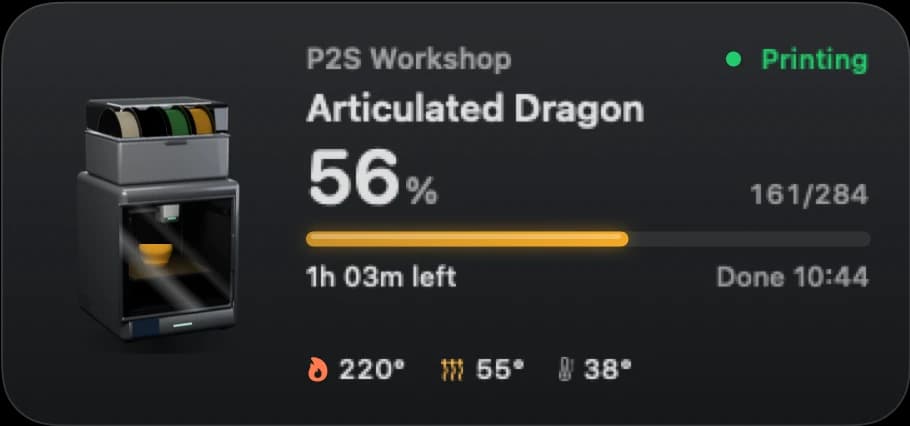
- Medium: the printer with the part growing in its filament's colour, progress, finish time and temperatures.
- Large: everything, including every AMS spool with grams left and the latest error.
Widgets need macOS 26 or later and Bambu Bar running in the menu bar.
Three sizes
| Size | What it shows |
|---|---|
| Small | A progress ring with the percentage, time left, the filament going in, the finish time and layers |
| Medium | A render of your printer with the part growing in the filament's colour and the AMS spools in theirs; the job, progress, finish time, layers and temperatures |
| Large | Temperature tiles, every AMS spool with the grams left, the newest printer error in plain words and how the last print went |
When the printer is paused, a widget says why (filament runout, for example). When it's finished, it shows how long ago and how long the print took. When it's idle, it shows the temperatures and the loaded spools.
The tiles adapt to your printer: the large widget shows the chamber temperature where the model has a sensor, and otherwise the second nozzle or the part fan. An A1 never shows a chamber it doesn't have.
Add a widget
- Right-click an empty spot on the desktop and choose Edit Widgets….
- Search for Bambu Bar.
- Drag the small, medium or large widget onto the desktop, or into Notification Center.
- Click Done.
One widget per printer
With more than one printer, each widget can follow a different one. Right-click the widget, choose Edit "Printer" and pick the printer. A widget left on its default follows the printer shown in the menu bar. See multiple printers.
How widgets stay up to date
Widgets show what Bambu Bar last received from the printer, so the app must be running: Open at Login keeps it in the menu bar after a restart. macOS decides how often a widget redraws, so between updates each widget counts progress and time left forward on its own while a print runs.
Everything happens on your Mac: the app writes a small snapshot for its widget, and nothing goes through a server.
What widgets don't do
- No live camera. macOS widgets can't play video; the camera is in the menu bar panel and its own window. See the camera on your Mac.
- No buttons for pause or stop. Use the menu bar panel or the main window.
- Not on Windows or iPhone. These are Mac widgets for macOS 26 or later. On a phone, Bambu Handy has its own app; see Bambu Handy on a Mac.
If a widget seems stuck, see widgets not updating.
Questions, answered
Is there a Bambu Lab widget for the Mac desktop?
Yes, with Bambu Bar: small, medium and large widgets for the desktop and Notification Center on macOS 26 or later, showing progress, time left, temperatures and filament.
Do the widgets work when Bambu Bar is closed?
They show the last update, but they need the app running to stay current. Closing the window keeps Bambu Bar running in the menu bar; quitting it stops the updates.
Can I have widgets for several printers?
Yes. Add one widget per printer, then right-click each and choose Edit "Printer" to pick which printer it shows.
Can the widget show the camera?
No. macOS widgets can't show live video. Open the camera from the menu bar panel or press ⌘K.
Read next
- Widgets not updatingA widget showing old progress or the wrong printer: the checks, from the app to macOS.
- Bambu Handy on a MacWhat Apple's listing says about running Bambu Handy on a Mac, and the desktop alternatives for following prints.
- Several printers at onceEvery printer on one Mac: the ones that need you first, then the rest by time left, with widgets and alerts for each.
- Compatible Bambu Lab Printers: All 15 ModelsBambu Bar works with all 15 Bambu Lab printers: P2S, P1S, P1P, X1 Carbon, X1, X1E, X2D, A1, A1 mini, A2L, H2D, H2D Pro, H2C, H2S, H3C. Compare camera setup, chamber data and AMS filament for yours.


Stop walking to the printer
Track Bambu Lab print progress, time left, temperatures, AMS filament and the live camera on your Mac. Get print alerts and desktop widgets without opening Bambu Studio.
Print progress, alerts and filamentmacOS 26+, Apple silicon & Intel Windows & Linux coming next