
Feature
All your printers. One glance
Bambu Bar watches every Bambu Lab printer you add, at the same time, and sorts them so the one that needs you is always on top.
In short
Bambu Bar monitors as many Bambu Lab printers as you add, all at once, from one Mac on the same network.
- All Printers lists them with the ones that need you first (failed, paused), then by soonest finish.
- The menu bar follows the printer you choose, or whichever is busy.
- Each widget and notification can follow its own printer.
- Add All sets up every printer your slicer already knows in one click.
Add every printer at once
During setup, when Bambu Studio or OrcaSlicer on your Mac already knows several printers, Bambu Bar finds them on the network and offers Add All, with their access codes. Later, add another with Add Printer… in the Printer menu or on the Printers page. See getting started.
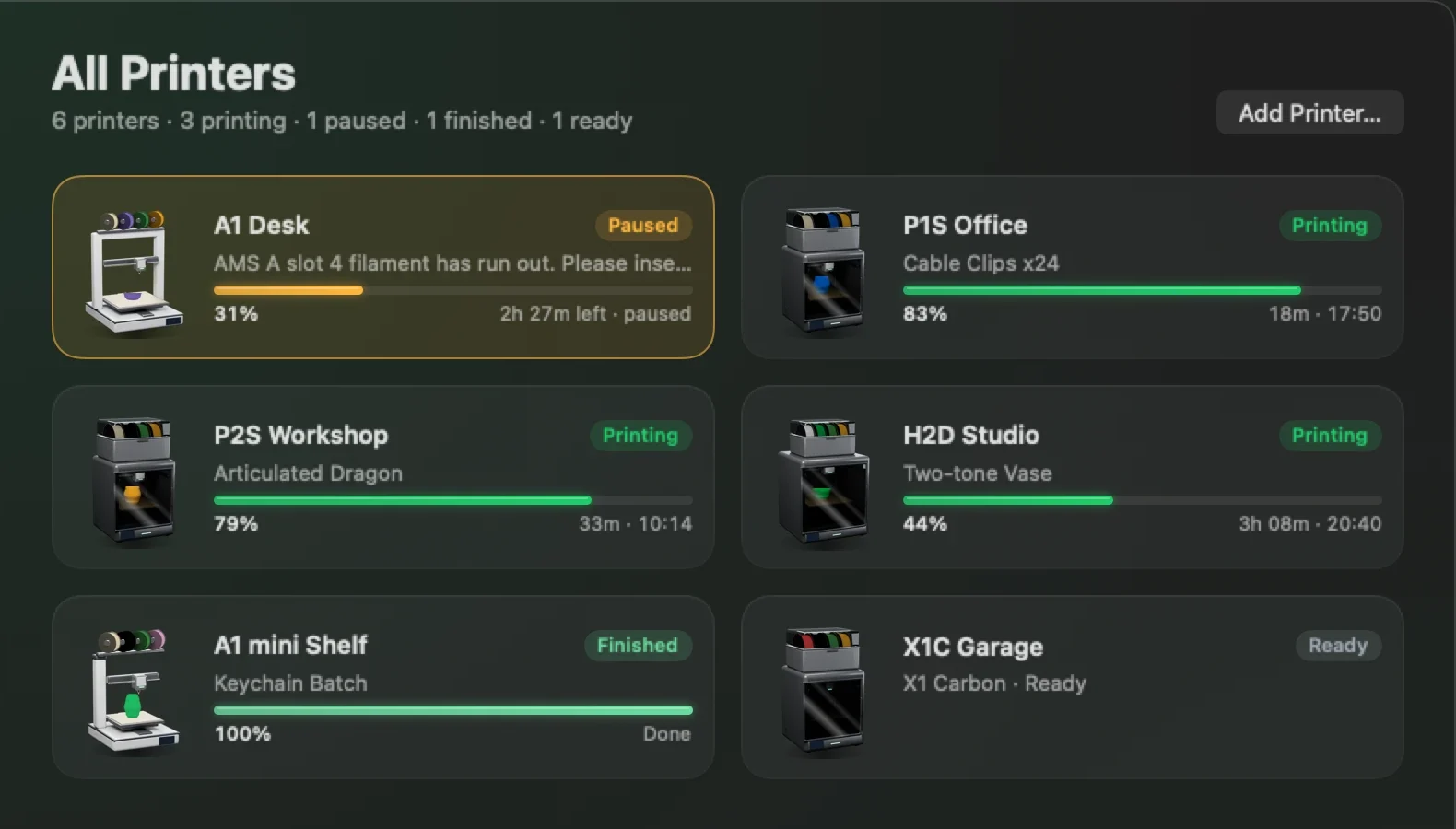
All Printers: trouble first
The All Printers page in the main window, and the grid button in the menu bar panel, list every printer:
- Printers that need you: failed and paused, with the reason in plain words ("Paused: filament ran out").
- Everything else, by soonest finish, so the next plate to clear is near the top.
Each card shows the job, progress, time left and the printer's state. Click one to open its Printer page.
Switch between printers
- The printer name at the top of the menu bar panel.
- The sidebar in the main window.
- The Printer menu, which also has the controls for the current printer.
On the Menu Bar page, choose which printer the menu bar shows, or let it pick whichever is busy.
Widgets and alerts per printer
- Widgets: add one per printer, then right-click each and choose Edit "Printer". See desktop widgets.
- Notifications name the printer, so you know which one finished or paused. See print notifications.
- Filament: each printer's AMS shows its own spools and grams. See AMS filament.
For a small print farm
A Mac on the same network as your printers is enough to keep a shelf of them in view: every job's state, the printers that need clearing or refilling, and alerts as things happen. Mixed models are fine: each shows what it reports.
Bambu Bar is a monitor, not farm management software. It doesn't queue or dispatch jobs, assign printers to users, track costs or reach printers outside your local network. Jobs are still sent from Bambu Studio or OrcaSlicer, and pause, stop and speed need LAN Only with Developer Mode on each printer (why).
Questions, answered
How many printers can Bambu Bar monitor?
As many as you add. It watches them all at the same time over your local network.
Can I see all my printers in the menu bar?
The menu bar shows one printer at a time, the one you choose or whichever is busy. The panel's grid button and the All Printers page show every printer.
Can it send jobs to the next free printer?
No. Bambu Bar monitors and controls running prints; sending and queuing jobs is done in Bambu Studio or OrcaSlicer.
Do the printers need to be the same model?
No. Any mix of the 15 supported models works, and each shows exactly what it reports.
Read next
- Getting startedFrom download to your printer in the menu bar: requirements, installing, connecting, and the optional camera, controls and widgets.
- Local vs remote monitoringWhat local monitoring on your Mac covers, what remote access needs, and why you shouldn't open your printer to the internet.
- AMS filament and grams leftHow much filament is left on each AMS spool, in grams, with colour names and humidity, and where the numbers come from.
- Compatible Bambu Lab Printers: All 15 ModelsBambu Bar works with all 15 Bambu Lab printers: P2S, P1S, P1P, X1 Carbon, X1, X1E, X2D, A1, A1 mini, A2L, H2D, H2D Pro, H2C, H2S, H3C. Compare camera setup, chamber data and AMS filament for yours.


Stop walking to the printer
Track Bambu Lab print progress, time left, temperatures, AMS filament and the live camera on your Mac. Get print alerts and desktop widgets without opening Bambu Studio.
Print progress, alerts and filamentmacOS 26+, Apple silicon & Intel Windows & Linux coming next