Verified printer
Your Bambu Lab X1 Carbon, in the menu bar.
The X1 Carbon reports chamber temperature, both auxiliary fans and its chamber light, all of which Bambu Bar shows in the panel, the window and the large widget.
Download for macOSVerified on hardware
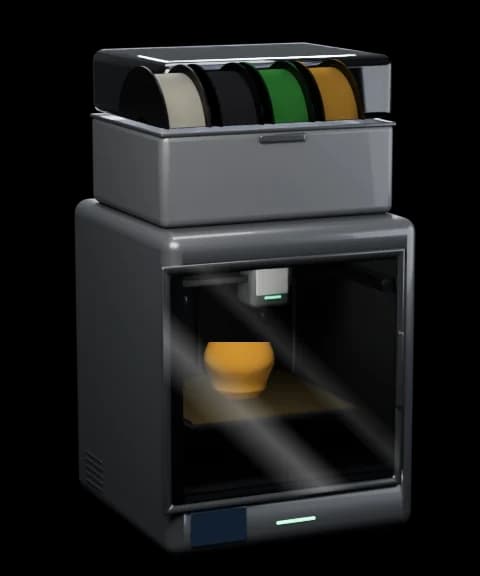
What Bambu Bar shows for the X1 Carbon
- Progress, layers, time left and finish time
- Nozzle temperature (up to 300 °C)
- Bed temperature (up to 110 °C)
- Chamber temperature
- AMS spools by colour name, grams left and humidity
- Chamber light switch
- Part, aux and chamber fans
- Door open warning
- Pause, resume, stop and print speed (LAN Only + Developer Mode)
- Printer errors (HMS) in plain words, in Bambu Lab's own translations, with a link to the wiki
X1 Carbon at a glance
- Chamber
- Enclosed, with temperature sensor
- Build volume
- 256 × 256 × 250 mm
- Nozzles
- 1 · up to 300 °C
- Bed
- Up to 110 °C
- Filament
- AMS, AMS 2 Pro, AMS HT
- Chamber light
- Yes, switchable from the panel
Connect your X1 Carbon in three steps
- 1. Download Bambu Bar and open it. It lists the printers it finds on your network.
- 2. Pick your X1 Carbon. The access code fills itself in from Bambu Studio or OrcaSlicer, or read it on the printer under Settings → Network.
- 3. Click Connect. For pause, stop and speed, switch the printer to LAN Only with Developer Mode on.