
Feature
Your Bambu Lab camera, on your Mac
Bambu Bar shows the printer's own camera on your Mac, straight from the printer on your local network: in the menu bar panel, on the Printer page, or in a small window that floats above your work.
In short
To watch a Bambu Lab printer's camera on your Mac with Bambu Bar:
- Open Settings → Camera and turn on Show the printer camera.
- On the Printers page, turn the camera on for the printer.
- On an X1, H2, H3C, P2S or X2D, also turn on LAN Only Liveview on the printer's screen. P1, A1 and A2L printers need nothing extra.
The picture appears in the menu bar panel and on the Printer page, and ⌘K opens it in a floating window.
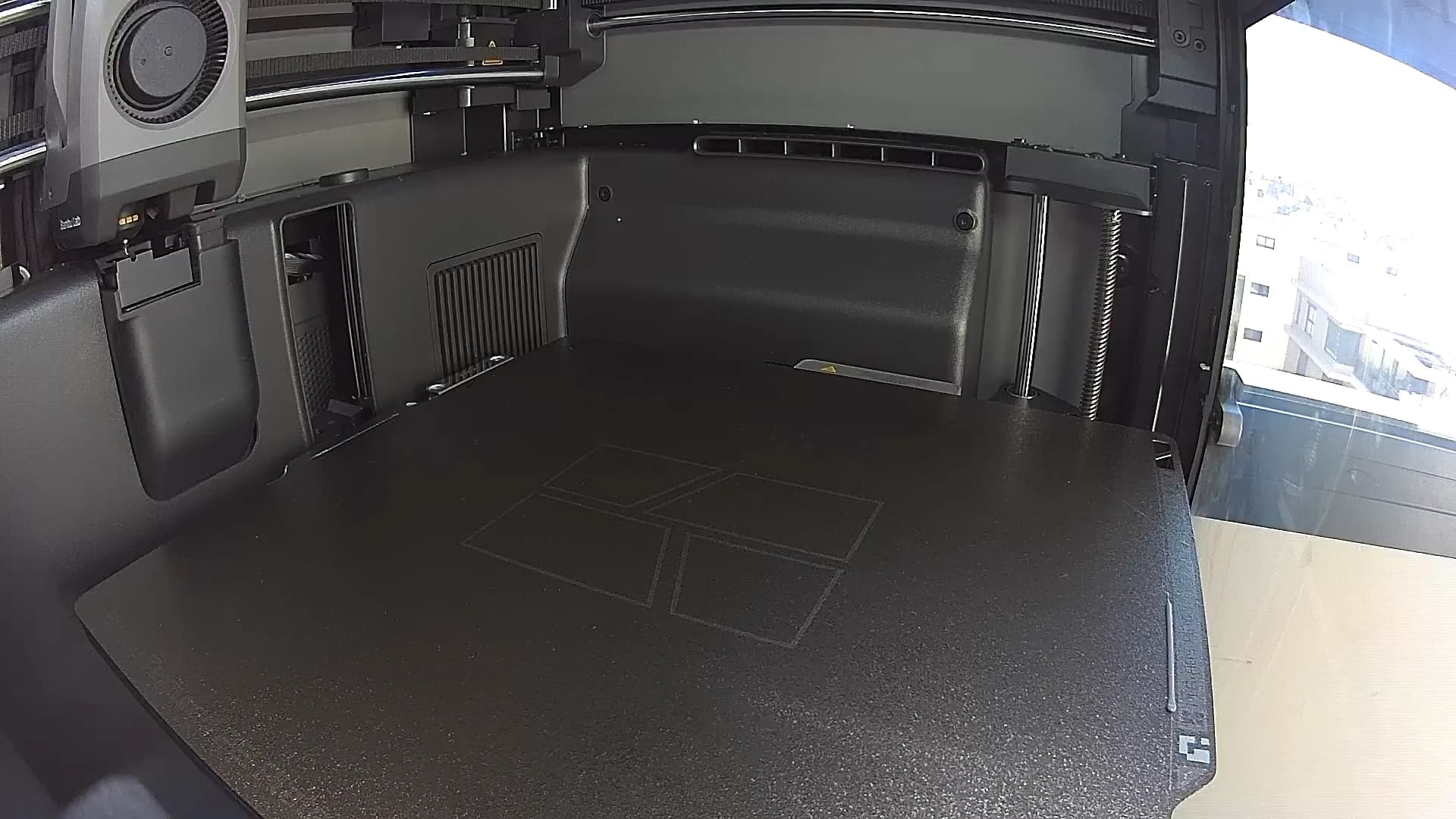
Three places to watch
- The menu bar panel. Click Bambu Bar in the menu bar and the camera preview sits under the print's progress. Fold it away when you don't need it.
- The Printer page. Open the main window for a larger picture next to temperatures, fans and filament.
- A floating window. Press ⌘K, or choose Show Camera in the Printer menu, for a resizable window that stays on top of your other apps. Handy beside a browser or a CAD model.
How each printer sends its camera
Bambu Lab printers stream their camera in one of two ways, and Bambu Bar picks the right one for your model:
| Printers | How the camera streams | What to turn on |
|---|---|---|
| X1, X1 Carbon, X1E, X2D, P2S, H2D, H2D Pro, H2C, H2S, H3C | Video over encrypted RTSPS | LAN Only Liveview on the printer |
| P1S, P1P, A1, A1 mini, A2L | A stream of JPEG pictures over an encrypted connection | Nothing extra |
LAN Only Liveview is a switch in the printer's network settings (on most models under Settings → Network, or Settings → LAN Only on the newest screens). It lets apps on your network open the camera stream. It is not the same as LAN Only mode: the printer can stay in cloud mode, bound to your Bambu Lab account and Bambu Handy. See LAN mode explained for the difference.
Either way, Bambu Bar signs in with the printer's access code and checks the printer's certificate before it shows anything, the same way it connects for status.
It streams only while you watch
A camera stream costs the printer some effort and uses one of its few camera connections. So Bambu Bar opens it only while the picture is on screen: a folded preview, a closed panel or a window scrolled away uses no connection at all.
If you'd rather see the picture the moment you open the panel, turn on Keep the camera connected during prints in Settings → Camera. The stream then runs for the whole print, which means Bambu Handy or Bambu Studio may not get the camera at the same time.
What to expect from the picture
- It's the printer's own camera. Bambu Bar shows exactly what the printer sends. The P1 and A-series cameras send still frames at a low rate, so their picture moves in steps rather than as smooth video; no app can make that camera faster. The X1, H2, H3C, P2S and X2D cameras send video.
- Nothing is recorded. The picture is shown and thrown away. Bambu Bar doesn't save frames, record video or make timelapses: the printer and Bambu Studio handle timelapses.
- Local network only. The camera comes straight from the printer over your network, like the rest of Bambu Bar. Away from home, use Bambu Handy; see local and remote monitoring.
- The printer's camera only. Bambu Bar doesn't add external webcams or other cameras.
When the picture doesn't show
The usual reasons are a switch that's still off, LAN Only Liveview on the RTSPS printers, or another app already holding the camera. Camera not working walks through the checks for each printer.
Questions, answered
Can I see the Bambu Lab camera on a Mac without Bambu Studio?
Yes. Bambu Bar shows the camera on its own, in the menu bar panel, on the Printer page and in a floating window, without Bambu Studio open. It connects to the printer directly on your local network.
Does the P1S or A1 camera need LAN Only Liveview?
No. The P1S, P1P, A1, A1 mini and A2L send a JPEG stream that works with the printer as it is. Only the X1, H2, H3C, P2S and X2D printers need LAN Only Liveview on.
Why is the P1S or A1 picture choppy?
Those cameras send still frames at a low rate, so the view updates in steps. That's the camera itself: Bambu Studio and Bambu Handy show the same rate.
Does Bambu Bar record the camera or make timelapses?
No. It shows the live picture and never saves it. Timelapses are made by the printer and Bambu Studio.
Can I watch the camera from outside my home?
Not with Bambu Bar: it works on your local network. Bambu Handy shows the camera away from home through Bambu Lab's cloud.
Read next
- Camera not workingNo picture from your Bambu Lab printer's camera? The checks for each model, in Bambu Bar and in Bambu Studio.
- LAN mode explainedCloud mode, LAN Only, LAN Only Liveview and Developer Mode: four different settings, and which ones you actually need.
- Bambu Lab P1S Camera & Monitor for MacMonitor your Bambu Lab P1S from your Mac: print progress, the live camera, temperatures and AMS filament in the menu bar and desktop widgets. For macOS 26+.
- Bambu Lab A1 Camera & Monitor for MacMonitor your Bambu Lab A1 from your Mac: print progress, the live camera, temperatures and AMS Lite filament in the menu bar and desktop widgets. For macOS 26+.
- Compatible Bambu Lab Printers: All 15 ModelsBambu Bar works with all 15 Bambu Lab printers: P2S, P1S, P1P, X1 Carbon, X1, X1E, X2D, A1, A1 mini, A2L, H2D, H2D Pro, H2C, H2S, H3C. Compare camera setup, chamber data and AMS filament for yours.


Stop walking to the printer
Track Bambu Lab print progress, time left, temperatures, AMS filament and the live camera on your Mac. Get print alerts and desktop widgets without opening Bambu Studio.
Print progress, alerts and filamentmacOS 26+, Apple silicon & Intel Windows & Linux coming next