
Guide
How to watch your Bambu Lab camera on a Mac
Your printer's camera can sit right next to your work, on top of every other window. Here are the three ways to watch it on a Mac, from easiest to most technical.
In short
- Bambu Studio's Device page shows the camera, while Studio is open.
- Bambu Bar puts it in the Mac menu bar, on its Printer page and in a floating window that stays on top (⌘K), with Studio closed.
- VLC, OBS and other players can open the video stream of X1, H2, H3C, P2S and X2D printers over RTSPS.
X1, H2, H3C, P2S and X2D printers need LAN Only Liveview turned on. P1S, P1P, A1, A1 mini and A2L printers need nothing extra. Which camera you have
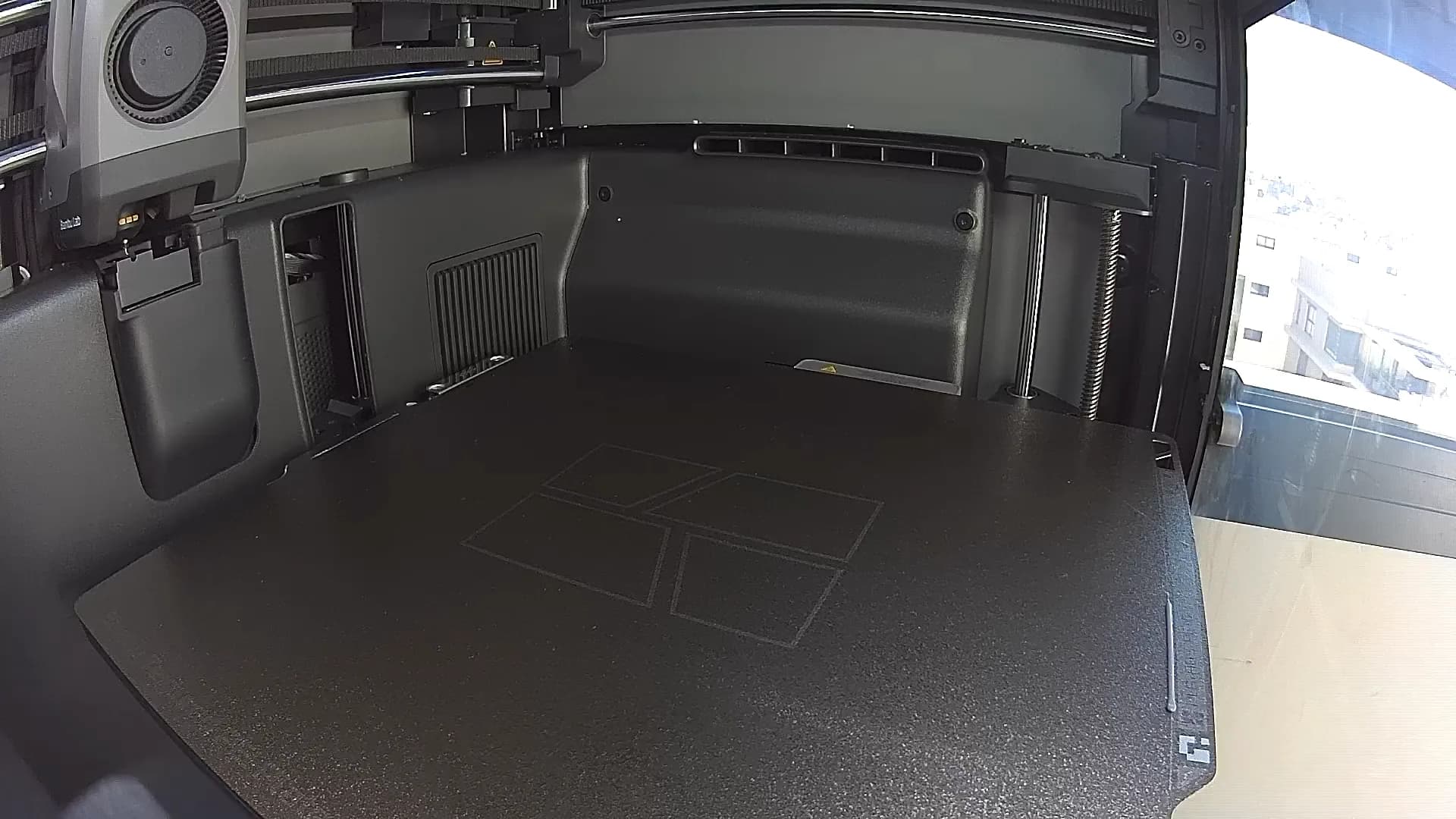
Which camera does your printer have?
| Printers | How the camera streams | What to turn on |
|---|---|---|
| X1, X1 Carbon, X1E, X2D, P2S, H2D, H2D Pro, H2C, H2S, H3C | Video over encrypted RTSPS (port 322) | LAN Only Liveview |
| P1S, P1P, A1, A1 mini, A2L | A stream of JPEG pictures over an encrypted connection (port 6000) | Nothing |
LAN Only Liveview is a switch in the printer's network settings (Settings → Network on most models, Settings → LAN Only on the newest screens). It isn't LAN Only mode: the printer stays in cloud mode, with Bambu Handy working. See Bambu Lab LAN mode.
Option 1: Bambu Studio's Device page
Bambu Studio shows the camera on its Device page, next to the print's progress. It's built in and free, but it lives inside the slicer: close Studio, or bury its window under your other work, and the camera goes with it.
Option 2: A floating window with Bambu Bar
Bambu Bar keeps the camera where you'll actually see it:
- In the menu bar. Click Bambu Bar and the camera preview sits right under the print's progress.
- On the Printer page, for a bigger picture next to the temperatures, fans and AMS.
- In a floating window. Press ⌘K for a resizable camera window that stays on top of everything: your browser, your CAD model, your next video call.
Turn it on once in Settings → Camera → Show the printer camera, then for each printer on the Printers page. Bambu Bar streams only while the picture is on screen, and it never records anything.
It works with every Bambu Lab printer, on your local network, with no Bambu Lab sign-in, on macOS 26 or later. It's free to use. Get Bambu Bar · More about the camera
Also on a PC? Bambu Bar for Windows shows the same camera in the tray panel, on the Printer page and in its own window with a Keep on top pin (Ctrl+K).
Option 3: VLC, OBS and other players (X1, H2, P2S, X2D, H3C)
X1, H2, H3C, P2S and X2D printers stream their camera as video over RTSPS, which other software can open too.
The RTSPS address
With LAN Only Liveview on, the stream is at:
rtsps://<printer-ip>:322/streaming/live/1
The user name is bblp and the password is the printer's access code. The IP address is on the printer's screen, in the same network settings.
Why VLC often fails
The stream is encrypted, and the printer uses its own certificate, so many players, VLC included, don't open it directly. People who want it in VLC or OBS usually run it through a converter such as go2rtc, or play it with ffplay. That works, but it's a project; Bambu Bar's floating window does the same job in one keystroke.
P1S, P1P, A1, A1 mini and A2L: what's possible
These printers don't offer an RTSP stream. They send an encrypted stream of JPEG pictures on port 6000, which Bambu Studio, Bambu Handy and Bambu Bar can show. VLC and OBS can't open it on their own.
The picture moves in steps rather than as smooth video: that's the camera's own frame rate, the same in every app, and no app can make it faster.
Keep it safe
- Keep the access code private. It's the password to your printer's camera and status. Don't post it, or screenshots of it.
- Don't open the camera port to the internet. Forwarding port 322 on your router puts your printer's camera online for anyone to try. To watch from outside your home, use Bambu Handy; see local and remote monitoring.
No picture at all? Camera not working has the checks for each printer.
Questions, answered
How do I watch my Bambu Lab camera on a Mac?
Bambu Studio shows it on its Device page while it's open. To keep it visible without the slicer, Bambu Bar shows it in the Mac menu bar, on its Printer page and in a floating window that stays on top (⌘K). X1, H2, H3C, P2S and X2D printers need LAN Only Liveview on; P1S, P1P, A1, A1 mini and A2L printers need nothing extra.
Why won't VLC open my Bambu Lab camera?
X1, H2, P2S, X2D and H3C printers stream over encrypted RTSPS on port 322, signed in with the user name bblp and the access code, and many players, VLC included, don't open that stream directly. P1 and A1 series printers don't offer RTSP at all.
Do I need LAN Only mode to see the camera on my Mac?
No. On X1, H2, H3C, P2S and X2D printers you need only LAN Only Liveview; the printer stays in cloud mode with Bambu Handy working. P1, A1 and A2L printers need no setting.
Can I keep the printer camera on top of other windows?
Yes. In Bambu Bar on a Mac, press ⌘K or choose Show Camera in the Printer menu for a resizable camera window that stays on top of your other apps. Bambu Bar for Windows has one too: press Ctrl+K and use its Keep on top pin.
Read next
- The printer camera on Mac and PCYour Bambu Lab printer's live view in the Mac menu bar or the Windows tray, the main window or a window on top, and how to set it up for your model.
- Camera not working"Printer camera is malfunctioning" or no picture at all? Find out if it's the printer or your computer, then the checks for each Bambu Lab model.
- LAN mode explainedCloud mode, LAN Only, LAN Only Liveview and Developer Mode: four different settings, and which ones you actually need.
- How local monitoring works (MQTT)The local MQTT connection behind Bambu Studio and Bambu Bar: port, topics, sign-in, certificates, and what's read versus sent.
- Local vs remote monitoringWhat local monitoring on your Mac or PC covers, what remote access needs, and why you shouldn't open your printer to the internet.


Stop walking to the printer
Track Bambu Lab print progress, time left, temperatures, AMS filament and the live camera on your Mac. Get print alerts and desktop widgets without opening Bambu Studio.
Print progress, alerts and filamentmacOS 26+, Apple silicon & Intel Also on Windows · Linux coming next
Stop walking to the printer
Track Bambu Lab print progress, time left, temperatures, AMS filament and the live camera on your PC. Get Windows notifications and desktop widgets without opening Bambu Studio.
Print progress, alerts and filamentWindows 10 and 11, x64 & ARM64 Also on the Mac · Linux coming next