Feature
Know when it's done. Or when it isn't
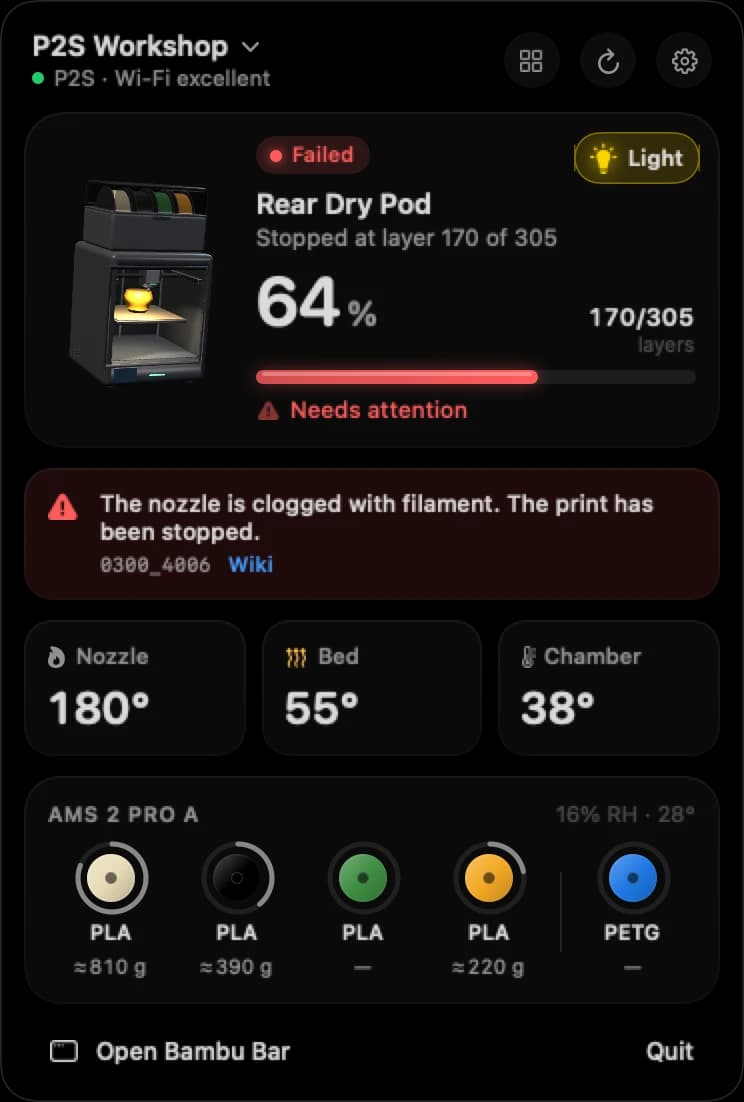
Bambu Bar posts a macOS notification when your print needs you, so you don't have to keep checking.
In short
Bambu Bar can notify you on your Mac when:
- a print finishes, with how long it took;
- a print fails or is canceled, with the reason;
- a print pauses, for example when the filament runs out;
- the printer reports a new error;
- optionally, a print starts.
Choose which on Bambu Bar's Notifications page. Bambu Bar must be running on a Mac on the same network as the printer.
Choose your notifications
Open the Notifications page in Bambu Bar's sidebar (⌘8). There are four switches:
| Switch | You're notified when |
|---|---|
| Print finished | A print completes. It says how long it took, and that it's ready to take off the plate. |
| Print failed, canceled or an error | A print fails or is canceled, or the printer reports a new serious error. |
| Print paused (filament runout, user) | A print pauses: the filament ran out, or someone paused it. |
| Print started | A print begins. Handy when someone else starts jobs on a shared printer. |
The first time a notification is on, macOS asks whether Bambu Bar may send notifications: click Allow. If macOS has them turned off for Bambu Bar, the page says so, with a button to System Settings.
What a notification looks like
Notifications use the printer's name and the job's name, and errors use Bambu Lab's own wording, in your language where Bambu Lab publishes a translation. A new notification of the same kind replaces the previous one instead of piling up. Click it to open Bambu Bar's window.
When you won't get them
- macOS settings. If notifications don't appear, check System Settings → Notifications → Bambu Bar, and whether a Focus is on.
- Bambu Bar isn't running. Notifications come from the app on your Mac. Open at Login keeps it running.
- The Mac is asleep or away. Bambu Bar watches the printer on your local network. Away from home, or with the Mac asleep, it can't see the printer. Bambu Handy sends phone notifications through Bambu Lab's cloud; see local and remote monitoring.
Bambu Bar doesn't send emails, text messages or phone notifications, and it doesn't detect failures by itself: it passes on what the printer reports.
Several printers
Notifications come from every printer Bambu Bar watches, each naming its printer, so you know which one needs you. See multiple printers.
Questions, answered
Can I get a notification when my Bambu Lab print finishes on my Mac?
Yes. Turn on Print finished on Bambu Bar's Notifications page. You get a macOS notification with the job's name and how long it took.
Will I be notified when the filament runs out?
Yes, with Print paused (filament runout, user) on. The notification says which slot ran out when the printer reports it.
Can I get these notifications on my phone?
Not from Bambu Bar: it notifies the Mac it runs on. Bambu Handy sends phone notifications.
Why didn't I get a notification?
Check that notifications are allowed in System Settings → Notifications, that no Focus is silencing them, and that Bambu Bar was running and the Mac awake on the printer's network.
Read next
- Getting startedFrom download to your printer in the menu bar: requirements, installing, connecting, and the optional camera, controls and widgets.
- Several printers at onceEvery printer on one Mac: the ones that need you first, then the rest by time left, with widgets and alerts for each.
- Local vs remote monitoringWhat local monitoring on your Mac covers, what remote access needs, and why you shouldn't open your printer to the internet.
- Support: Setup, Camera and Connection HelpSet up Bambu Bar and fix printer discovery, camera, controls and widget problems, or get help with your supporter license and purchase account.


Stop walking to the printer
Track Bambu Lab print progress, time left, temperatures, AMS filament and the live camera on your Mac. Get print alerts and desktop widgets without opening Bambu Studio.
Print progress, alerts and filamentmacOS 26+, Apple silicon & Intel Windows & Linux coming next