
Verified printer
Your Bambu Lab P1P, in the menu bar
Keep an eye on your open-frame P1P from the menu bar: the job, nozzle and bed temperatures, fans and every AMS spool.
Download for macOSVerified on hardware
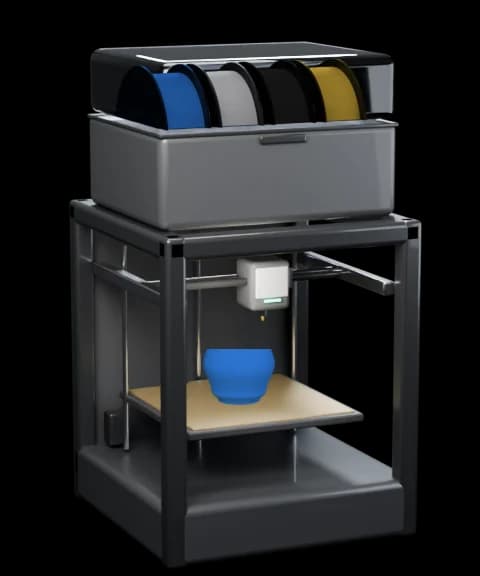
What Bambu Bar shows for the P1P
- Progress, layers, time left and finish time
- Nozzle temperature (up to 300 °C)
- Bed temperature (up to 100 °C)
- AMS spools by colour name, grams left and humidity
- Chamber light switch
- Part, aux and chamber fans
- Pause, resume, stop and print speed (LAN Only + Developer Mode)
- Printer errors (HMS) in plain words, in Bambu Lab's own translations, with a link to the wiki
P1P at a glance
- Chamber
- Open frame
- Build volume
- 256 × 256 × 250 mm
- Nozzles
- 1 · up to 300 °C
- Bed
- Up to 100 °C
- Filament
- AMS, AMS 2 Pro, AMS HT
- Chamber light
- Yes, switchable from the panel
Connect your P1P in three steps
- 1. Download Bambu Bar and open it. It lists the printers it finds on your network.
- 2. Pick your P1P. The access code fills itself in from Bambu Studio or OrcaSlicer, or read it on the printer under Settings → Network.
- 3. Click Connect. For pause, stop and speed, switch the printer to LAN Only with Developer Mode on.